




The IRS is moving away from paper checks — and honestly, that's a good thing. Paying online is faster, more secure, and easier to track. If you've ever felt unsure about how to actually do it, you're not alone. We put together this simple, step-by-step guide so you know exactly where to click.
The IRS offers a free tool called Direct Pay that lets you send money straight from your bank account — no sign-in required, no processing fees, and no check to mail. Here's how to use it.
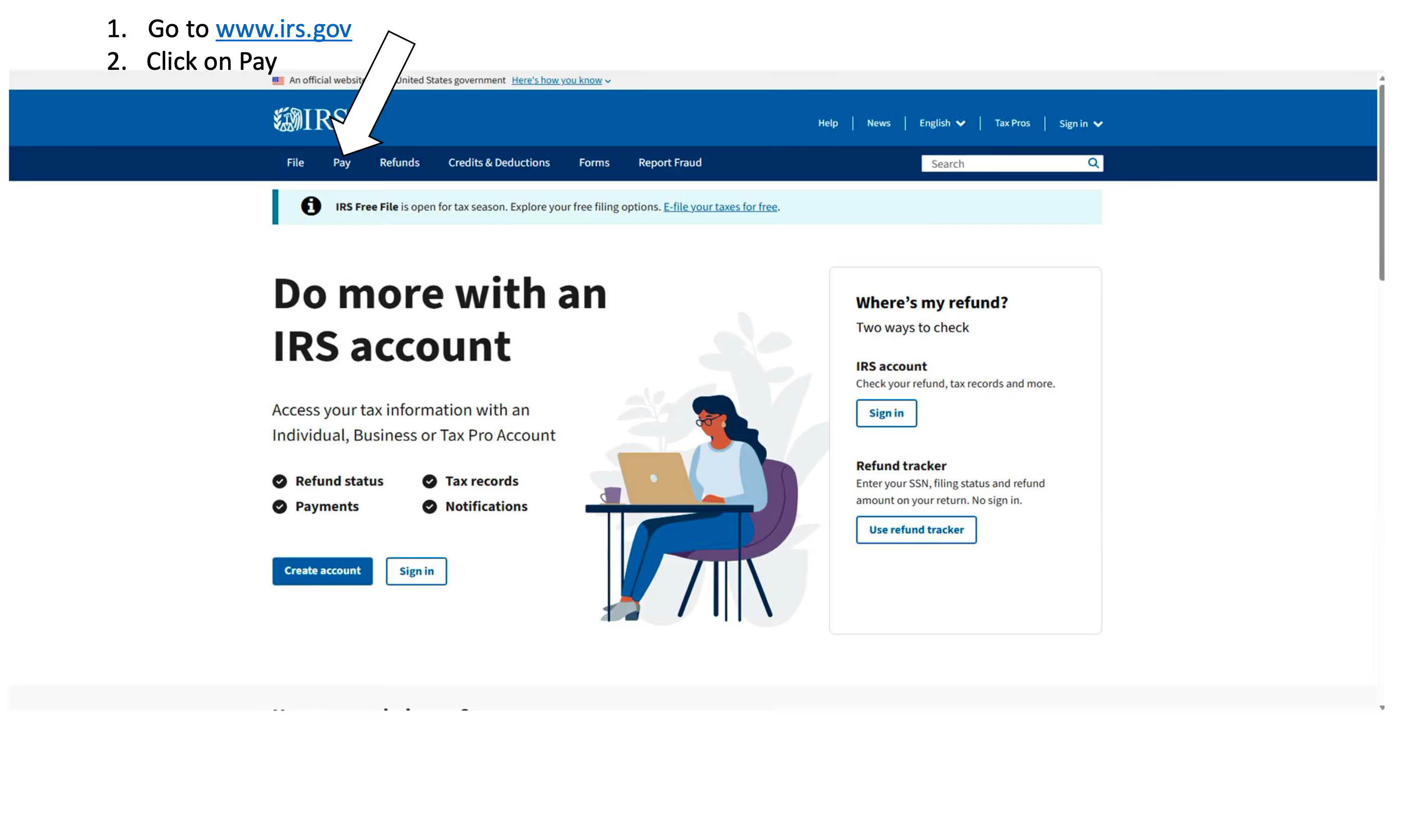
Head to www.irs.gov and look for the "Pay" option in the top navigation menu.
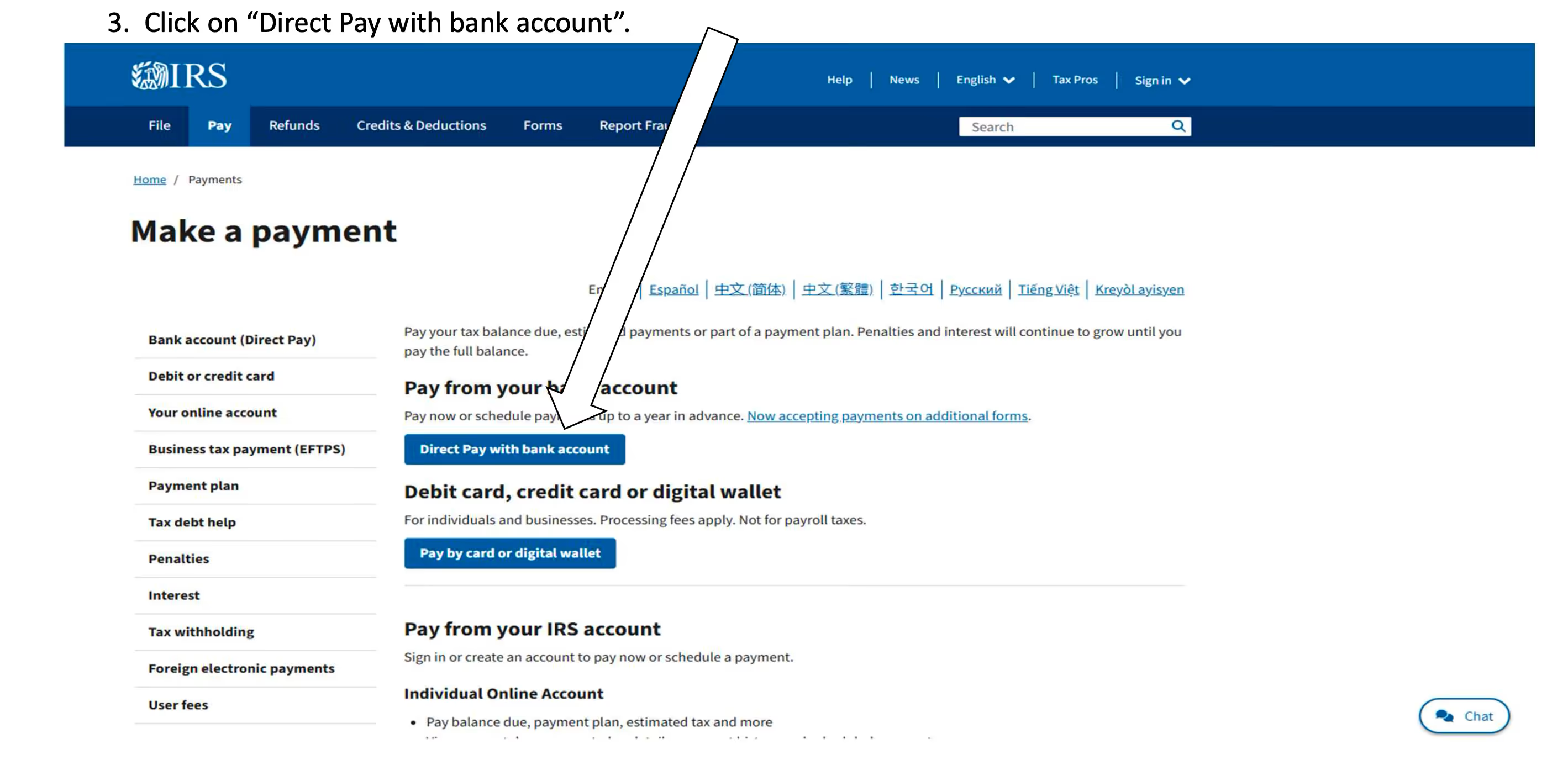
On the Payments page, you'll see several options. Under "Pay from your bank account," click the blue "Direct Pay with bank account" button.
This option is free, requires no account login, and allows you to schedule payments up to a year in advance.
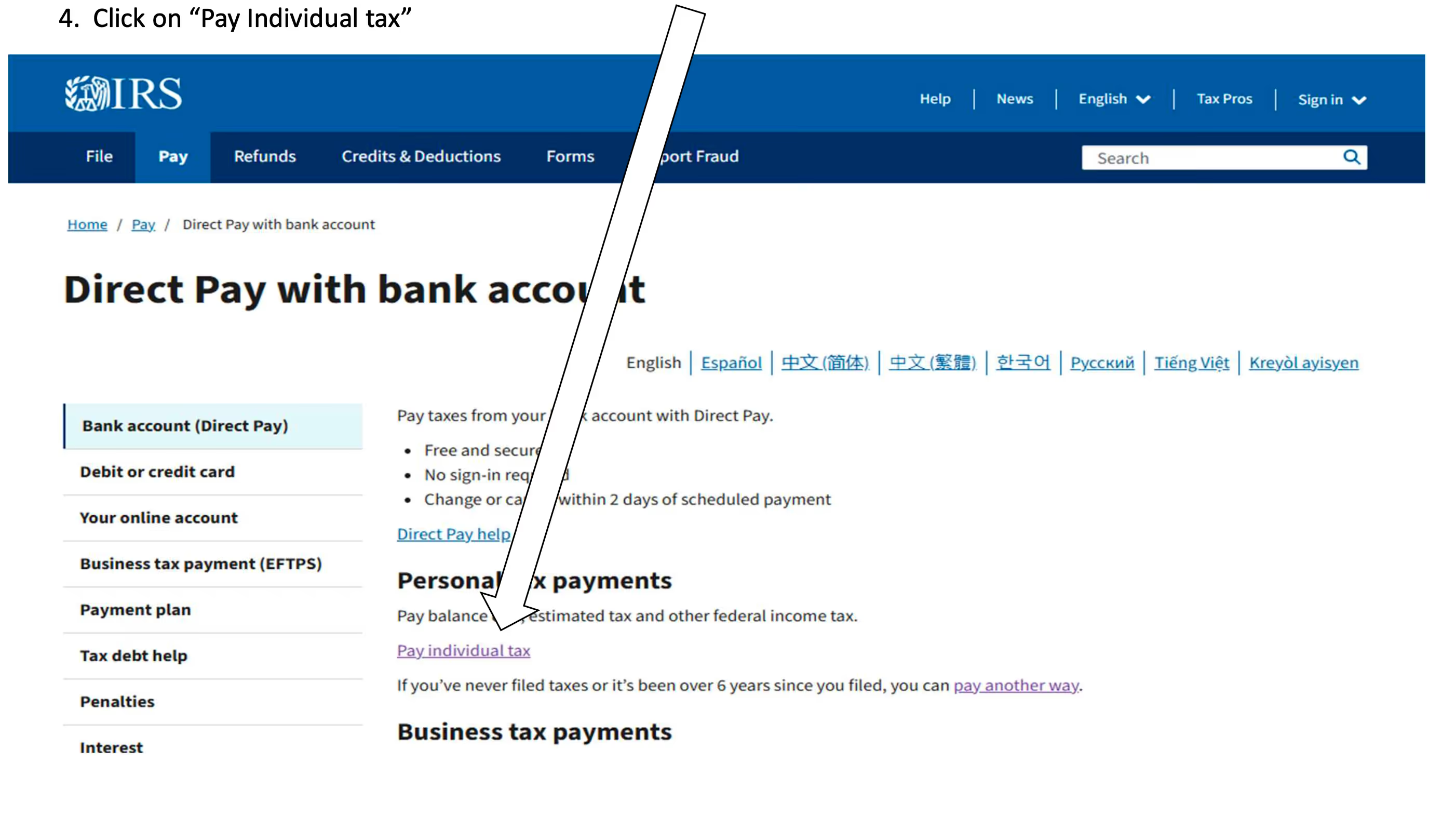
On the next screen, under the "Personal tax payments" section, click "Pay individual tax."
This covers balance due payments on your 1040, as well as estimated tax payments.
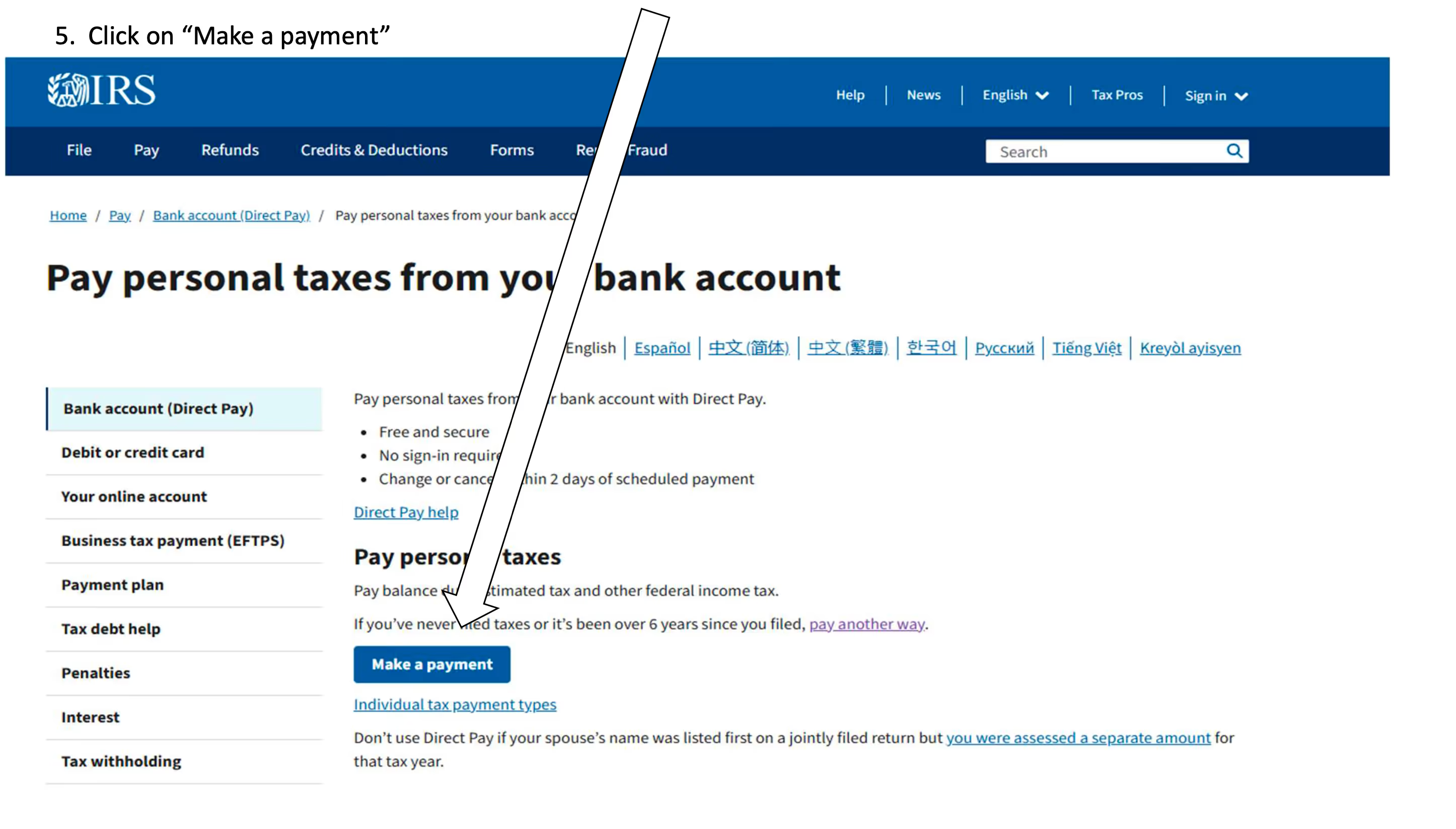
You'll land on the "Pay personal taxes from your bank account" page. Click the blue "Make a payment" button to get started.
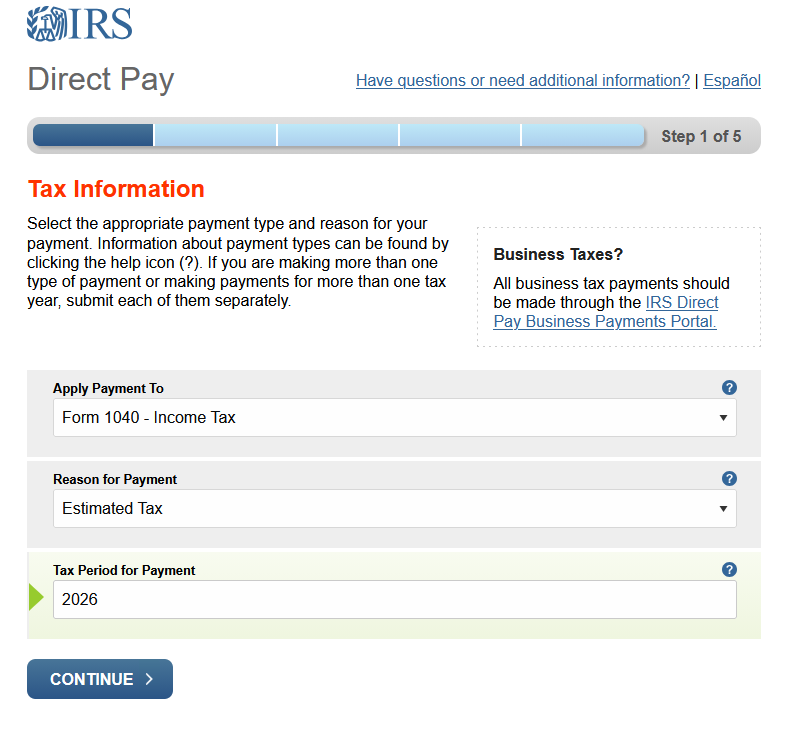
This is where it splits into two paths depending on what you're paying. On this screen (Step 1 of 5), you'll fill in three fields:
If you're paying a balance due on your tax return:
Apply Payment To → Form 1040 - Income Tax
Reason for Payment → Balance Due
Tax Period → 2025 (or whatever year you're paying the tax for)
If you're making an estimated tax payment:
Apply Payment To → Form 1040 - Income Tax
Reason for Payment → Estimated Tax
Tax Period → 2026 (or whatever year you're making estimates for)
Click Continue, then confirm your selection on the pop-up and click Continue again.
Step 6: Enter Your Personal Information
The next screens will ask for your personal information to verify your identity. One thing to note: the Tax Year for Verification should match the most recent return you've filed with the IRS. This is simply their way of confirming that the information you're entering matches what they have on file.
Once you complete the five steps and submit your payment, you'll receive a confirmation number. Save it for your records.
If you have questions about how much to pay, when to pay, or whether estimated payments apply to your situation, we're here to help. At Pennington & Associates CPA, we keep things straightforward and we're always available when you need us.